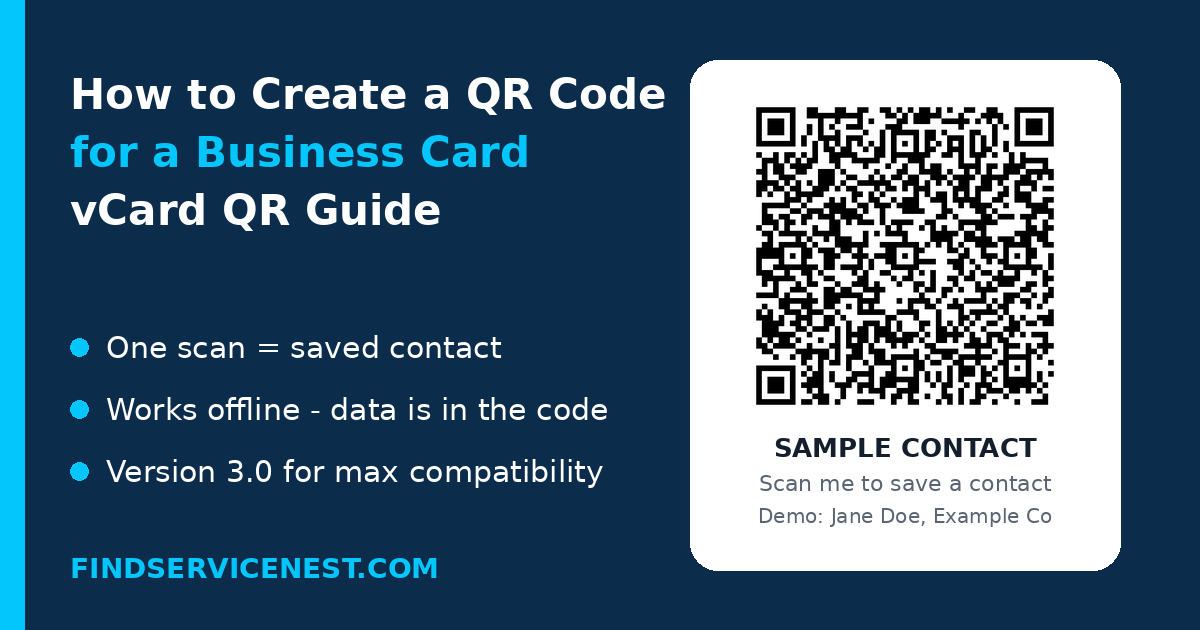
A vCard QR code on your business card lets anyone save your contact details with one phone scan — no typing, no misspelled numbers, no lost cards. The contact data is encoded directly in the QR pattern itself, so it works even with no internet connection: the phone’s camera recognizes the vCard format and offers to save the contact instantly.
What Is a vCard QR Code?
A vCard QR code encodes your contact information in the vCard (.vcf) standard — the same plain-text format phones and email apps use to store contacts, standardized as RFC 6350. Inside the QR pattern sits text that looks like this:
BEGIN:VCARD
VERSION:3.0
N:Doe;Jane;;;
FN:Jane Doe
ORG:Example Co
TITLE:Designer
TEL;TYPE=CELL:+1 555 0100
EMAIL:jane@example.com
URL:https://example.com
END:VCARD
The phone reads this text and maps each line — name, company, title, phone, email, website — into a new address-book entry. Because the data lives inside the code, a vCard QR never expires, never needs a server, and never loads a page. That independence is its biggest strength, and it comes with one hard constraint: whatever you encode is permanent. If your number changes, you must generate a new code.
How Do You Create One?
- Choose a QR generator with a vCard/contact option. FindServiceNest’s free QR Code Generator can produce one in seconds.
- Fill in only the fields you want to share. Essentials: full name, one phone number, email, company, job title, website.
- Generate the code and test it. Scan it with your own phone, save the contact, and open it — don’t stop at the preview. Check that every field landed in the right place and that the number actually dials.
- Download the code in high resolution. For print, vector or high-resolution PNG is best — dense grids have no tolerance for soft edges.
- Test again on the final printed card before ordering a full batch.
Which Fields Should You Include — and Skip?
Every extra field makes the QR pattern denser and harder to scan at small sizes. The best practice is to keep the payload lean:
- Do include: name, one mobile number, work email, company, job title, website.
- Skip the postal address unless people genuinely post things to you — it’s usually the largest text block after a photo.
- Never embed a photo. A base64 image multiplies the payload several times over and is the single most common cause of unscannable vCard codes.
- One phone number is enough. Mobile, in full international format with the plus sign (like +1 555 0100). A national-format number saved by someone abroad simply won’t dial — the most common quiet failure, since the contact saves fine but can’t be called.
- Use vCard version 3.0, not 4.0. Version 3.0 is older but supported universally across iPhone, Android, and desktop address books; 4.0 is still handled inconsistently by older Android contact apps. For a card that must work on any phone, compatibility beats correctness.
- Keep a short URL if you include a website.
How Big Should the QR Code Be on the Card?
Print size matters more for vCard codes than for website codes, because the pattern is denser:
- At least 2 cm wide on the card — 2.5 cm if you kept the address.
- Leave a quiet zone of about 2–3 mm of empty space around the code.
- Never let it bleed off the edge — trimming variance can clip the pattern.
- Matte stock, not gloss — business cards get scanned under overhead lighting, where laminate reflects.
- Error correction level M is the standard choice; higher levels enlarge an already dense grid.
After printing, test from the printed proof at a natural distance, not from your screen.
Static vs Dynamic: Which Should You Use?
A standard vCard QR is static — the contact data is baked into the pattern. It works forever and needs no subscription, but you can’t change the contents after printing. Changed jobs? New number? You’ll generate and reprint a new code.
A dynamic code instead points to a hosted contact page that you can update later — the same printed code always shows fresh details, and some services offer scan analytics. The trade-off is that it needs an internet connection and depends on the provider staying online.
Choose the static encoded vCard when your details are stable and reliability matters most — trade shows with saturated Wi-Fi, field work with poor signal, conference badges. Choose dynamic when your title, number, or company may change before the printed batch runs out.
Privacy: What Should You Watch Out For?
A vCard QR code publishes your phone number and email to anyone who can scan it. Put it only where you’re comfortable with that — your own card, your badge, your email signature. Don’t put one in a public flyer unless you want those details public. And when possible, generate the code locally or with a trusted generator so your details aren’t uploaded to a third party.
Quick Checklist Before You Print
- ☐ vCard version 3.0 selected
- ☐ Name, one international-format mobile, email, company, title, short URL
- ☐ No photo, no address, no fax
- ☐ Scanned on both iPhone and Android
- ☐ Contact saved and every field verified in the address book
- ☐ Number tapped and confirmed it dials
- ☐ 2 cm minimum print size, matte stock, quiet zone intact
Get these right and your card becomes a dependable contact handoff rather than a decorative add-on — one scan, and you’re in their address book.
Frequently Asked Questions
Will a vCard QR code work on both iPhone and Android?
Yes. Both phones can scan the code with the stock camera app and offer to save the contact. Still, test on both before printing in volume, since vCard handling differs slightly between them.
Can I update my details after printing?
Not with a static vCard code — the data is baked into the pattern, so any change means generating a new code. Use a dynamic QR if you expect changes.
How much information can a vCard QR code hold?
As much text as fits, but every extra field makes the code denser and harder to scan, so keep it to the essentials: name, one phone, email, company, title, website. For a different use case, see our guide on creating a WiFi QR code.
Is a vCard QR code different from a regular QR code?
Yes. A regular QR code usually contains a URL that opens a page; a vCard QR contains the contact data itself, so scanning it triggers the phone’s contact-saving flow with no page load and no internet needed.
Sources
- How to Make a vCard QR Code for Your Contact Details — DEV Community (vCard format structure, step-by-step creation, scannability rules)
- vCard QR Code: What It Is, How It Works & Best Practices — Medium, Jan 2026 (RFC 6350 standard, vCard 3.0 vs 4.0 compatibility, payload-minimization rules, static vs dynamic codes, print requirements)
Leave a Reply