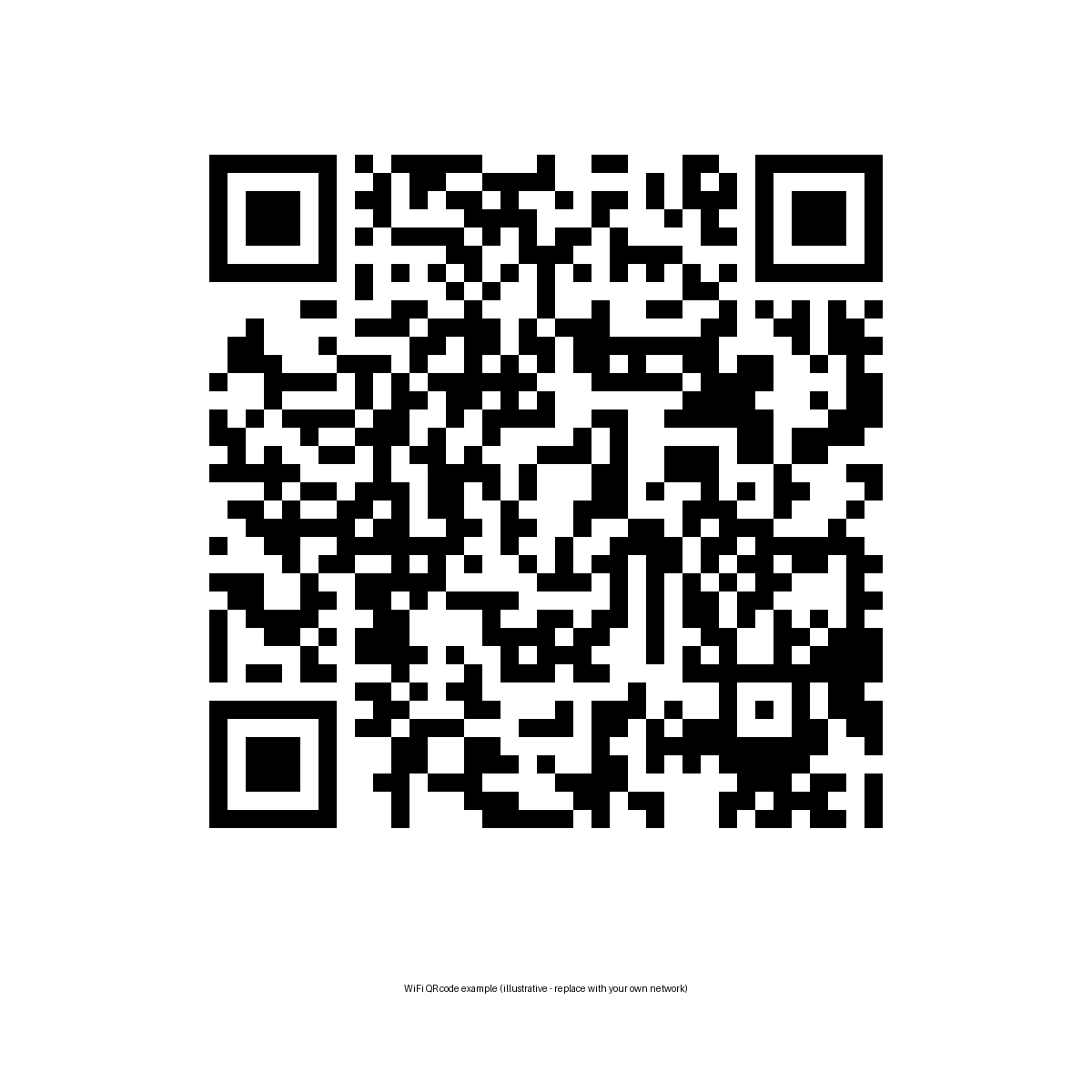
A WiFi QR code lets anyone join your wireless network by pointing their phone camera at a printed or on-screen code — no typing a long password. iPhones on iOS 11 or later and most Android phones (Android 10+) scan them natively with the camera app. You can make one in under a minute using your phone’s built-in sharing features or a free generator, and it is the simplest way to share internet with guests, renters, or customers.
What Is a WiFi QR Code?
A WiFi QR code is a QR code that stores your network name (SSID), security type, and password in a standard format instead of a web link. When a phone scans it, the operating system reads the credentials and offers a one-tap “Join network” prompt.
The code itself is just this text, encoded as an image:
WIFI:T:WPA;S:YourNetworkName;P:YourPassword;;
Here, T is the security type (WPA covers WPA2 and WPA3 personal networks; use nopass for open networks), S is the network name, and P is the password. Each field ends with a semicolon, and the whole string ends with two. You never need to type this manually — generators build it for you — but knowing the format helps you spot a broken code.
How Do I Create a WiFi QR Code on iPhone?
On iOS 18 or later (fastest method): open the built-in Passwords app, tap the Wi-Fi section, choose your network, and tap Show Network QR Code. The code appears instantly, and any modern phone camera can scan it.
On iOS 13 through iOS 17: use Apple’s free Shortcuts app. Open Shortcuts, go to the Gallery tab, search for “QR Your Wi-Fi”, and add it. Run the shortcut, enter your network name exactly as it appears (it is case-sensitive), enter the password, and the QR code is generated on screen.
Screenshot the code and keep it in your Photos, or print it out for the fridge. Just remember to generate a new one whenever you change your network name or password.
How Do I Create a WiFi QR Code on Android?
Android builds the feature right into the Wi-Fi settings. While connected to the network you want to share:
- Open Settings, then Wi-Fi (labeled Network & Internet on some phones).
- Tap the gear or settings icon next to your connected network.
- Tap the QR code or Share icon.
- Authenticate with your fingerprint or PIN — the code appears immediately.
Most Android phones also offer a save button so you can export the code as an image file. If yours does not, take a screenshot. Anyone — iPhone or Android — can scan it with their camera.
If you prefer a browser-based route, paste your network details into our free QR Code Generator to build the code without touching your phone settings.
How Do Guests Scan a WiFi QR Code?
It could not be simpler:
- Open the Camera app (or Google Lens on Android).
- Point it at the code.
- Tap the “Join network” / “Connect to network” banner or chip that appears.
The phone connects without ever displaying the password. On Windows 11 or macOS, cameras cannot join Wi-Fi directly — instead, decode the QR code with a free online scanner, copy the password, and paste it into Wi-Fi settings manually.
Is Sharing Your WiFi With a QR Code Safe?
A WiFi QR code is exactly as secure as the password itself — anyone who can see the code can join the network. Follow three habits to keep it safe:
- Use a guest network. Almost every router from the last decade supports one. It isolates visitors from your computers, smart-home devices, and security cameras.
- Generate the code privately. The code contains your password in plain text, so prefer a generator that runs entirely in your browser rather than uploading your credentials to a server.
- Never post your WiFi QR code on social media or a public website. That is the same as sharing your password. Change the password and reprint the code if it spreads wider than you intended.
Also confirm your network uses WPA2 or WPA3 security. WEP is broken and should be replaced — the security type on your code does not fix a weak protocol.
Why Won’t My WiFi QR Code Work?
When a scan fails, the cause is almost always in the encoded details. Work through these in order:
Special characters were not escaped. If your network name or password contains a backslash, semicolon, comma, colon, or double quote, each needs a backslash in front of it (for example, pa;ss:word must become pa\;ss\:word). This is the single most common failure.
The SSID does not match exactly. Wi-Fi names are case-sensitive, and copying a name can drag along a trailing space. Type it carefully.
Wrong security type. Choose WPA for WPA2 and WPA3 personal networks. Use nopass only for genuinely open networks.
Screen glare or low brightness. Raise the screen brightness and tilt the phone away from overhead lights when displaying the code.
Hidden network. If your SSID is not broadcast, the code needs the H:true flag (most generators add this when you tick “hidden network”).
Frequently Asked Questions
Do WiFi QR codes work on both iPhone and Android?
Yes. iPhones on iOS 11 or later and most Android phones scan them with the stock camera app — no extra app needed. The code itself is cross-platform.
Can I see the WiFi password from a QR code?
Yes. Anyone who decodes the code can read the password in plain text. Treat the image the same way you would treat a written-down password.
How big should I print a WiFi QR code?
A code a few centimeters square scans fine from arm’s length. Print it larger if guests will scan it from across a room, and always test-scan it yourself before posting it up.
Does a WiFi QR code work on 5GHz networks?
Yes. The code stores only the network name, security type, and password — the phone picks 2.4GHz or 5GHz automatically based on signal and capability.
Sources
- ScanApp — How to Connect to WiFi by Scanning a QR Code (https://scanapp.org/blog/2026/06/01/how-to-connect-to-wifi-by-scanning-a-qr-code.html)
- Dev.to — How to Make a WiFi QR Code (So Guests Never Ask for the Password) (https://dev.to/pulkitgovrani/how-to-make-a-wifi-qr-code-so-guests-never-ask-for-the-password-1k63)
- The Tech Gorilla — How To Share Wi-Fi Password (https://thetechgorilla.com/how-to-share-wifi-password/)
Leave a Reply